
How to Download Instagram Photos and Videos on PC
Saving an Instagram photo or video to your computer is straightforward when you have the post link. With SnapInsta, you can paste a public Instagram URL into the downloader and save the available media directly from your desktop browser.
You don’t need to install a separate downloader program. The process works through a web browser on Windows, macOS, and other desktop systems.
SnapInsta can process different types of Instagram content, including photos, videos, Reels, and Stories, when the content is publicly available.
Note: Download content only when you have permission or the right to use it. Respect the original creator’s copyright and Instagram’s rules.
What Can You Download from Instagram on PC?
Depending on the post and its availability, SnapInsta can be used to download:
- Instagram photos
- Instagram videos
- Instagram Reels
- Instagram Stories
- Multiple photos from carousel posts
The basic process is the same for most supported content: copy the Instagram link → paste it into SnapInsta → download the available file.
Step 1: Copy the Instagram Link
First, open Instagram in your desktop browser.
Find the photo, video, or Reel you want to save and open the post.
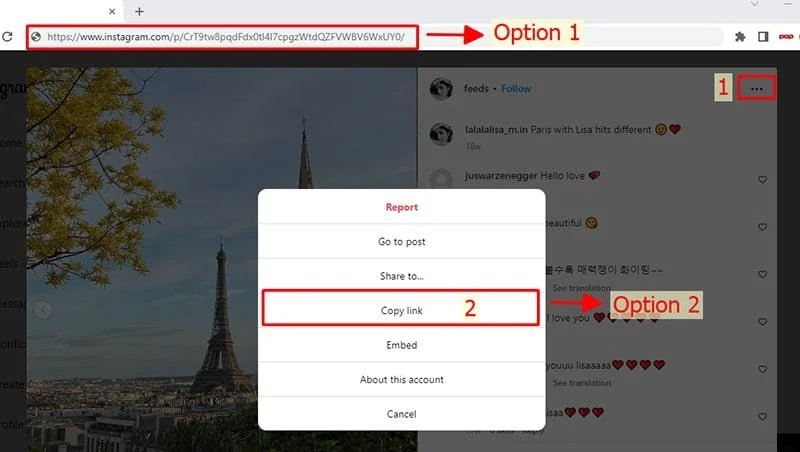
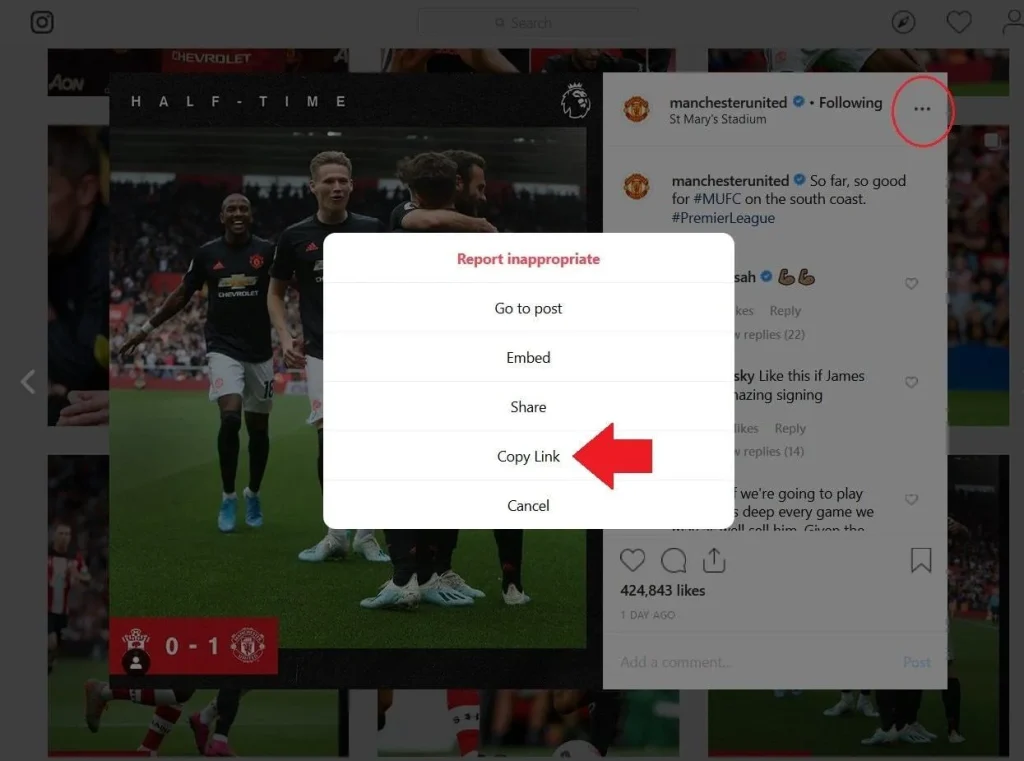
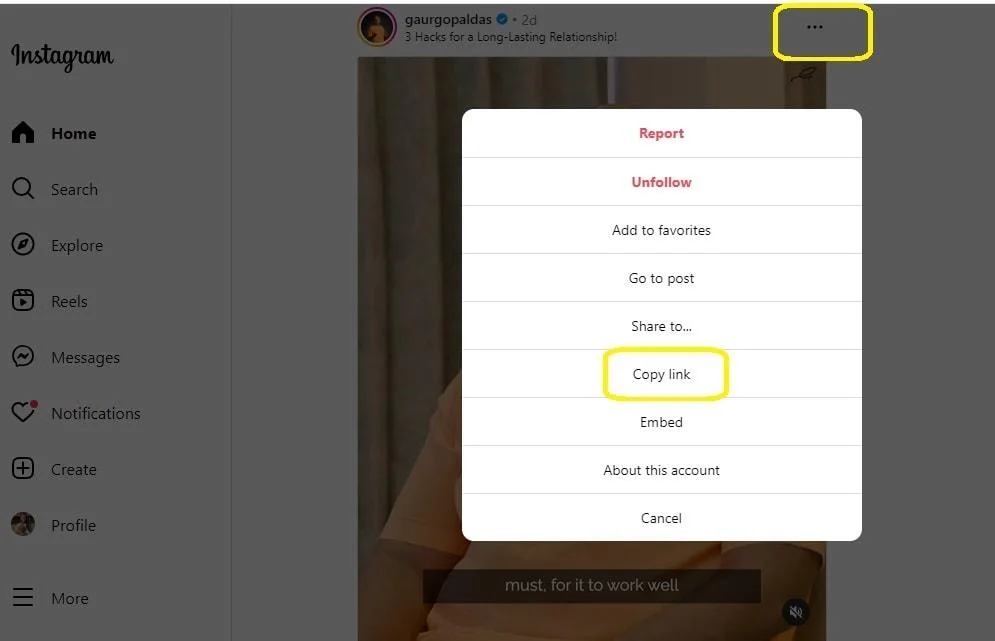
Click the three-dot menu (•••) on the post and select Copy link.
The post URL will be copied to your clipboard.
Step 2: Open SnapInsta on Your PC
Open a new browser tab and visit SnapInsta.
You can use common desktop browsers such as Chrome, Edge, Firefox, or Safari.
There is no need to install additional software before using the downloader.
Step 3: Paste the Instagram URL
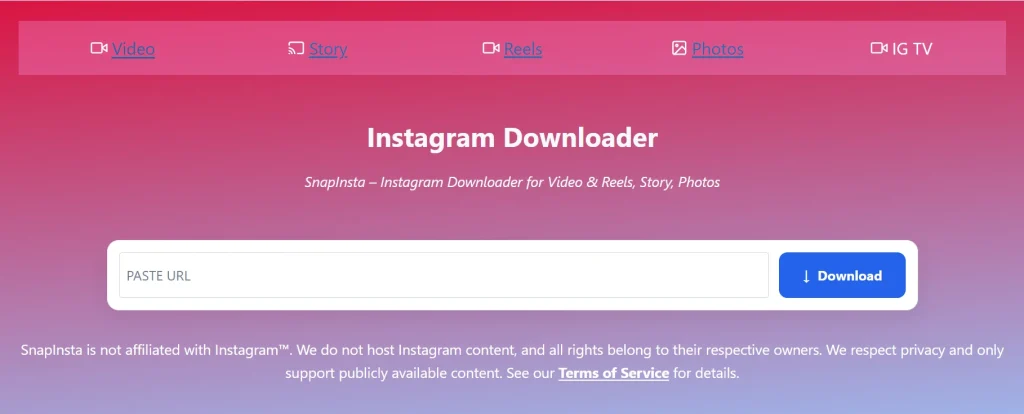
Paste the Instagram link into the input field on SnapInsta.
Click Download to submit the URL.
SnapInsta will process the link and display the available download result.
Step 4: Download the Photo or Video
Once the result appears, choose the appropriate download button.
For an image, click Download Photo.
For a video or Reel, click Download Video.
The browser will then begin downloading the file to your computer.
Step 5: Find the Downloaded File
When the download is complete, open your browser’s download history.
You can usually access it by pressing:
Ctrl + J on Windows
or checking the Downloads section in your browser.
The downloaded Instagram photo or video will normally be stored in your computer’s Downloads folder unless you have selected another location.
How to Download Instagram Reels on PC
The process for Reels is almost identical.
- Open Instagram on your computer.
- Open the Reel you want to save.
- Click Share or the three-dot menu.
- Select Copy link.
- Open SnapInsta.
- Paste the Reel URL.
- Click Download.
- Select Download Video.
Once the file has finished downloading, you can access it from your browser’s download history or your computer’s Downloads folder.
How to Download Instagram Photos on PC
To save an Instagram photo:
- Open the Instagram post.
- Copy its URL.
- Open SnapInsta in your browser.
- Paste the URL.
- Click Download.
- Select Download Photo.
- Check your Downloads folder.
For carousel posts, the available results may contain more than one image depending on the post.
Does SnapInsta Require Software on PC?
No. SnapInsta is accessed through a web browser, so you don’t need to install a desktop downloader.
This makes it convenient if you only need to save an Instagram photo or video occasionally.
You can use the service from a desktop computer without adding another application to Windows or macOS.
Where Are Instagram Downloads Saved on PC?
In most browsers, downloaded files are automatically placed in the Downloads folder.
You can also check your browser’s download history to locate the exact file.
For example:
Chrome / Edge / Firefox:
Press Ctrl + J to open the download history.
If your browser is configured to ask where files should be saved, you can select a different folder during the download.
Can I Use SnapInsta on Windows and Mac?
Yes. Because SnapInsta works through a web browser, the basic process is not tied to a particular desktop operating system.
You can use the same workflow on:
- Windows PC
- Mac
- MacBook
- Laptop
- Desktop computer
The important part is having a supported browser and an Instagram URL that SnapInsta can process.
Why Use SnapInsta on PC?
Using a browser-based downloader can be more convenient than installing desktop software.
With SnapInsta, you can:
- Download Instagram photos
- Download Instagram videos
- Save Reels
- Download available Stories
- Use the service directly in a browser
- Avoid installing additional software
- Save files directly to your computer
The simple URL-based process also means you don’t need to navigate through complicated settings before downloading.
Troubleshooting Instagram Downloads
If a download doesn’t work as expected, check the following:
Check the Instagram URL
Make sure you copied the complete post URL rather than text from the Instagram page.
Check Whether the Content Is Public
Some Instagram content may not be available to third-party download tools, particularly private or restricted content.
Try the Link Again
Copy the URL again from Instagram and paste the new link into SnapInsta.
Check Your Browser Downloads
The file may already have downloaded but be located in your browser’s Downloads folder.
Check Your Internet Connection
A slow or unstable connection can interrupt the download process, especially with larger video files.
Frequently Asked Questions
Can I download Instagram photos on PC?
Yes. Copy the Instagram post link, paste it into SnapInsta, and download the available photo to your computer.
Can I download Instagram videos on Windows?
Yes. SnapInsta can be accessed through a browser on Windows. Paste the Instagram video URL into the downloader and select the available video download option.
Can I download Instagram Reels on a computer?
Yes. Copy the Reel’s URL and paste it into SnapInsta. If the content is supported, you can download the available video.
Do I need to install software?
No. SnapInsta works through a web browser, so a separate desktop downloader isn’t required.
Where does the downloaded Instagram video go?
The file will normally appear in your browser’s Downloads folder. You can also use the browser’s download history to locate it.
Does SnapInsta work on Mac?
Yes. You can access SnapInsta through a compatible browser on Mac or MacBook and follow the same download process.
Can I download private Instagram posts?
Third-party downloaders generally work with publicly accessible content. Don’t attempt to bypass privacy controls or download content that you don’t have permission to access.
Download Instagram Photos and Videos on PC
You only need three basic steps to get started:
Copy the Instagram link → Paste it into SnapInsta → Download the file
No desktop software is required, and the same browser-based process can be used on Windows and Mac.