
How to Download Instagram Photos and Videos on iPhone
Downloading an Instagram photo or video to an iPhone doesn’t have to be complicated. With SnapInsta, you can copy the link to a public Instagram post, paste it into the downloader, and save the available media directly from your browser.
The method works on both iPhone and iPad, so you don’t need to install another downloader app just to save an Instagram photo or video.
SnapInsta supports several types of Instagram content, including photos, videos, Reels, and Stories. The basic process is the same: copy the Instagram link, open SnapInsta, paste the link, and download the result.
Note: Only download content you have permission to save or use. Respect the rights of the original creator when downloading or sharing Instagram content.
What Can You Download on iPhone?
SnapInsta can be used to download different types of public Instagram content, depending on the availability of the post:
- Instagram photos
- Instagram videos
- Instagram Reels
- Instagram Stories
- Photo carousel posts
The downloaded file can then be accessed from your iPhone’s Downloads folder or saved to the Photos app.
Copy the Instagram Link on iPhone
Before using SnapInsta, you need the URL of the Instagram post.
Step 1: Open the Instagram app on your iPhone or iPad.
Step 2: Find the photo, video, Reel, or other public post you want to save.
Step 3: Tap the Share button.
Step 4: Select Copy Link.
The Instagram URL is now copied to your clipboard.
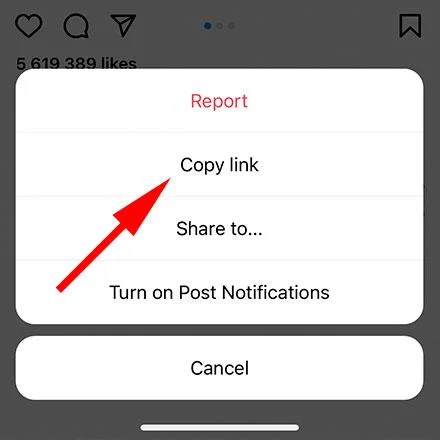
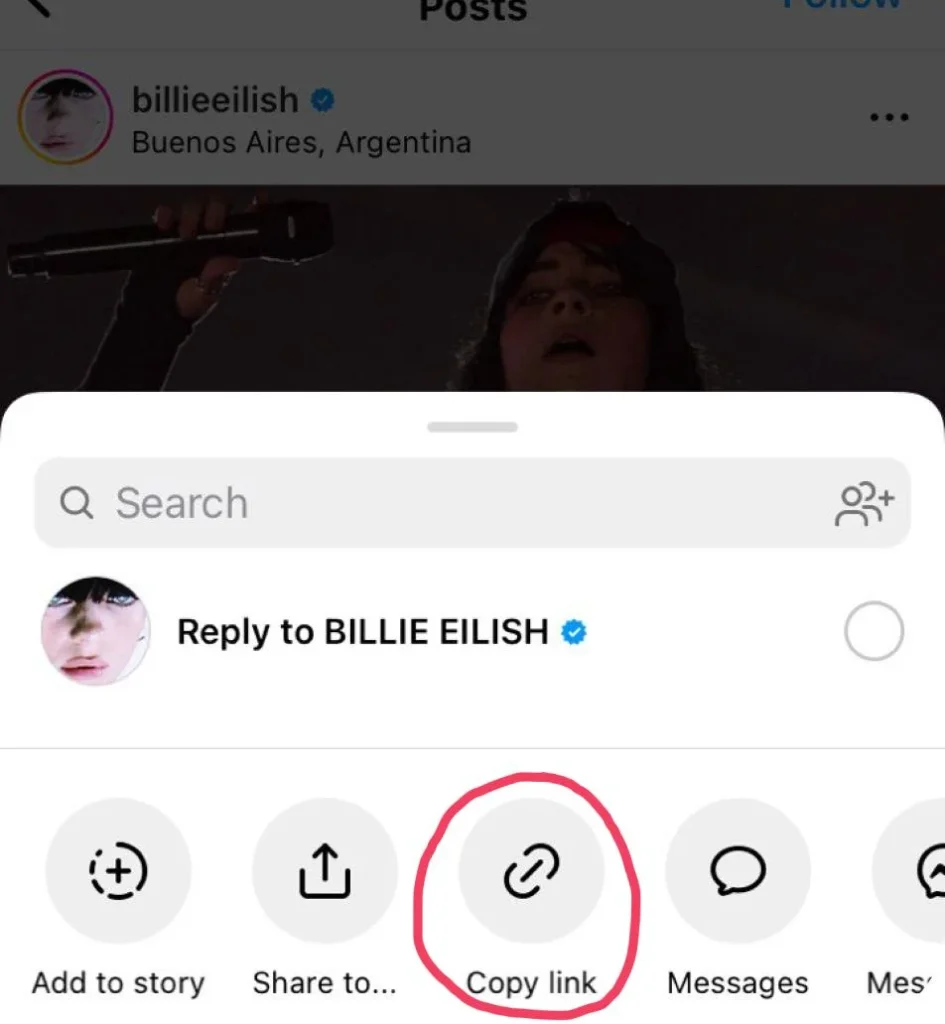
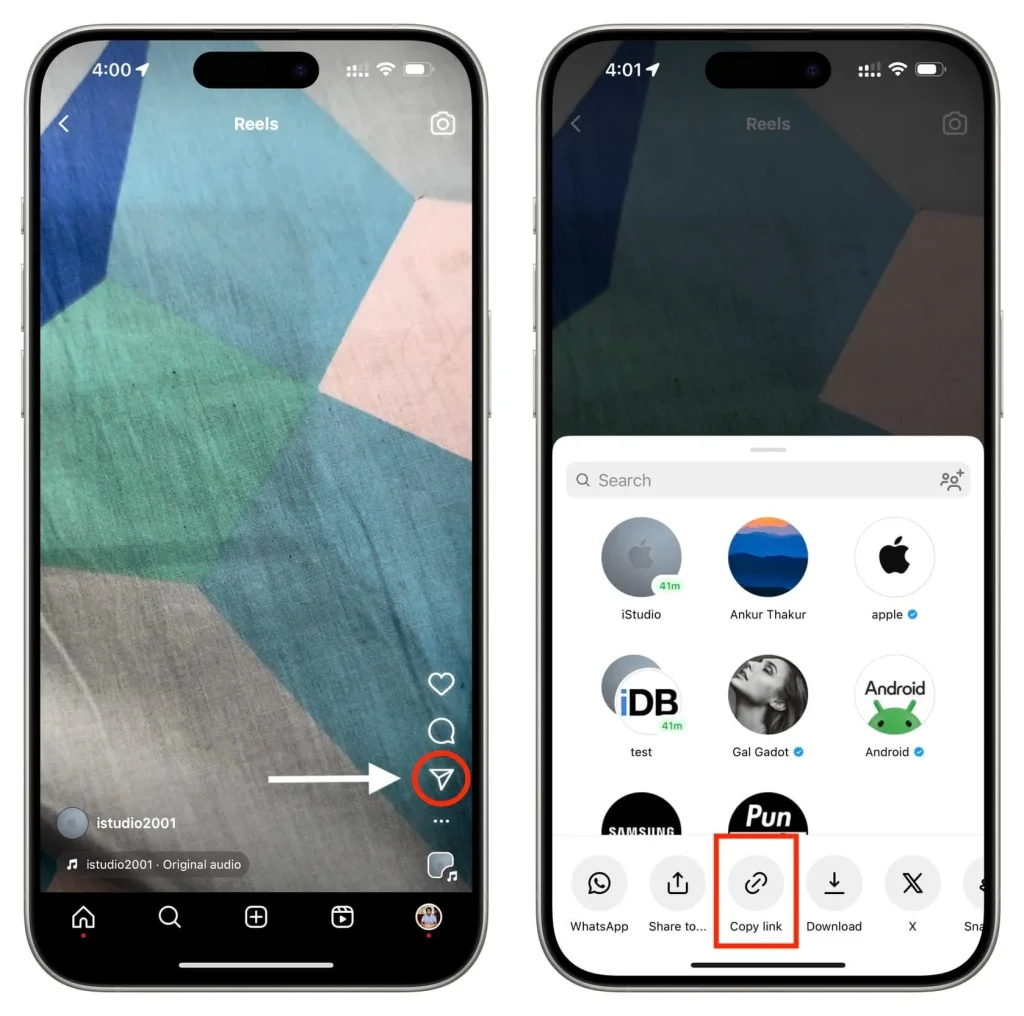
Once you have the link, you can use it with SnapInsta.
How to Download Instagram Videos on iPhone
The easiest method on a current iPhone is to use Safari.
Step 1: Open SnapInsta
Open Safari on your iPhone or iPad and visit SnapInsta.
You don’t need to install additional software. The downloader works directly through the browser.
Step 2: Paste the Instagram URL
Paste the Instagram link you copied earlier into the input box on SnapInsta.
Tap Download to start processing the link.
Step 3: Choose the Download Option
After SnapInsta processes the URL, the available download result will appear.
Tap the appropriate Download button for the video or photo.
Step 4: Confirm the Download
Depending on your iOS version and browser settings, Safari may ask you to confirm the download.
Confirm the download and allow Safari to save the file.
Step 5: Open Downloads
After the download finishes, open the Files app.
Go to:
Files → Browse → Downloads
The downloaded Instagram file should be available there.
Step 6: Save the Video to Photos
If you downloaded a video and want it inside your Photos library:
- Open the downloaded file.
- Tap the Share icon.
- Select Save Video.
- Open the Photos app.
The video should now appear in your photo library.
How to Download Instagram Photos on iPhone
Saving an Instagram photo follows almost the same process.
Step 1: Copy the link to the Instagram post.
Step 2: Open SnapInsta in Safari.
Step 3: Paste the URL into the downloader.
Step 4: Tap Download.
Step 5: Select the available photo download option.
Step 6: Open the downloaded image from the Files app.
Step 7: Tap Share and choose Save Image.
You can then find the image in the Photos app.
How to Download Instagram Reels on iPhone
Instagram Reels can also be downloaded using the same basic workflow.
- Open Instagram.
- Find the Reel you want to save.
- Tap Share.
- Select Copy Link.
- Open SnapInsta in Safari.
- Paste the Reel URL.
- Tap Download.
- Save the resulting video to your iPhone.
There is no need to manually search for the Reel file after copying the link. SnapInsta uses the URL to locate the available media.
How to Download Instagram Stories on iPhone
For a public Instagram Story that is available to the downloader:
- Copy the Story link from Instagram.
- Open SnapInsta in Safari.
- Paste the link into the input box.
- Tap Download.
- Select the available Story file.
- Save it to your iPhone.
Stories are temporary Instagram content, so availability can change after the Story expires.
Where Are Instagram Downloads Saved on iPhone?
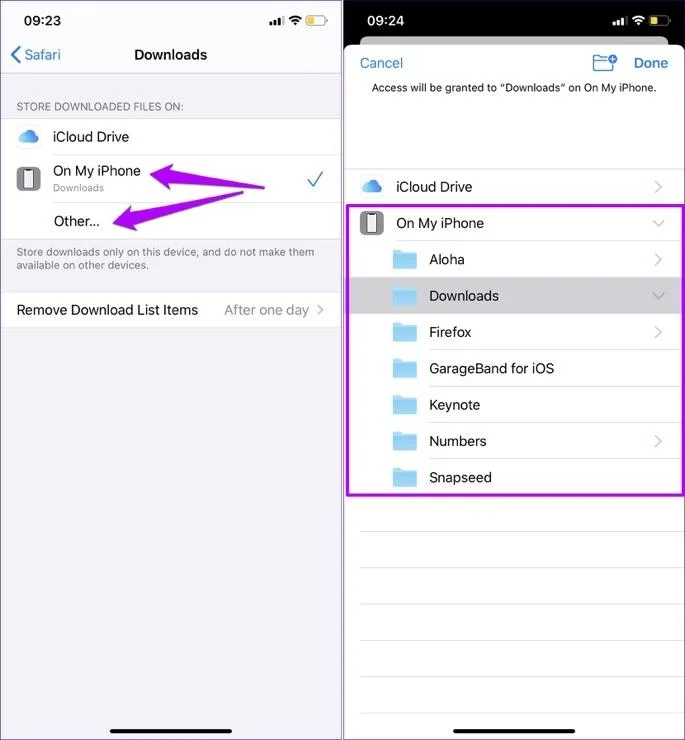
When you download a file through Safari, it will normally be saved in the Downloads folder within the Files app.
You can check:
Files → Browse → Downloads
From there, you can open the file, share it, move it, or save compatible images and videos to Photos.
This is different from taking a screenshot or screen recording because the downloaded file is stored separately from your existing Photos library until you choose to save it there.
Do You Need an App to Download Instagram Videos on iPhone?
No. SnapInsta works through a web browser, so you can use Safari instead of installing a separate downloader application.
This is particularly convenient when you only need to save an occasional Instagram photo, video, or Reel.
Can You Download Instagram Videos on iPad?
Yes. The same browser-based method can be used on an iPad.
Open Instagram or Instagram’s website, copy the post URL, open SnapInsta in Safari, and paste the link into the downloader.
After the file is downloaded, use the Files app to locate it. You can then move or save the file depending on its format.
Why Use SnapInsta on iPhone?
SnapInsta is designed to keep the download process simple:
- Works directly in a browser
- No downloader software required
- Supports photos and videos
- Supports Instagram Reels
- Supports available public Stories
- Works on iPhone and iPad
- Simple copy-and-paste workflow
The site’s current homepage also positions SnapInsta as a browser-based Instagram downloader that works across desktop, tablet, and mobile devices.
Frequently Asked Questions
Can I download Instagram photos on iPhone?
Yes. Copy the Instagram post URL, open SnapInsta in Safari, paste the link, and download the available photo.
Can I download Instagram Reels on iPhone?
Yes. Copy the Reel link and paste it into SnapInsta. If the Reel is available for downloading, you can save the resulting video to your device.
Where do downloaded Instagram videos go on iPhone?
Safari normally saves downloaded files in the Downloads folder in the Files app. You can move compatible videos to Photos using the Share menu.
Can I use SnapInsta on iPad?
Yes. SnapInsta can be accessed through a browser on compatible iPads, and the basic download process is the same as on iPhone.
Do I need to install an app?
No. SnapInsta is a web-based downloader, so you can use it directly through Safari without installing separate download software.
Can I download private Instagram posts?
SnapInsta’s current homepage states that its downloader works with public Instagram content.
Is it okay to download Instagram content?
Download and use content only when you have the right or permission to do so. If you plan to repost or use someone else’s content commercially, check the creator’s rights and applicable rules first.
Download Instagram Photos and Videos on iPhone
With SnapInsta, the process is straightforward: copy the Instagram link, paste it into the downloader, download the file, and save it to your iPhone or iPad.